
This page is a step-by-step guide on how to post a job in KConnect. This guide is meant for alumni only. If you are an external organization looking to hire K students, please click here.
If you need additional support or have questions, please contact us at career@kzoo.edu or 269.337.7183.
Please follow along and use the screenshots as a visual reference and complement to the text explanation. The steps below assume you have already created an account in KConnect. If you do not have an account in KConnect, follow this link for instructions.
Step 1: Click on job board
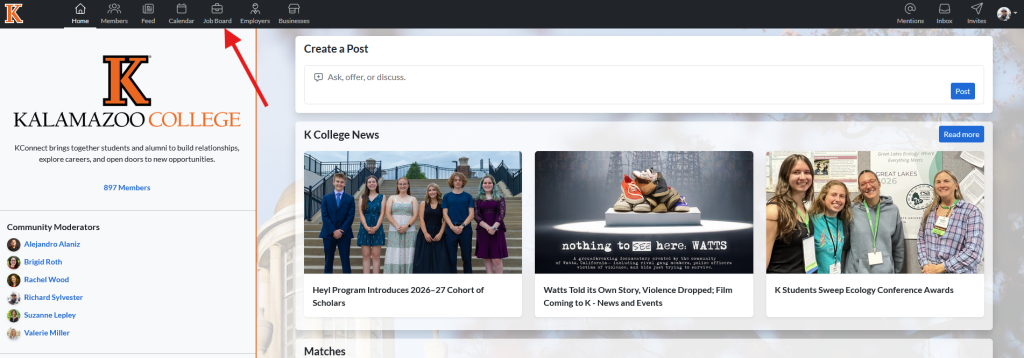
This screen is the homepage screen you should see as soon as you sign into your KConnect account. At the top of the screen, click on ‘job board’ to access the job board page.
Step 2: Click on post
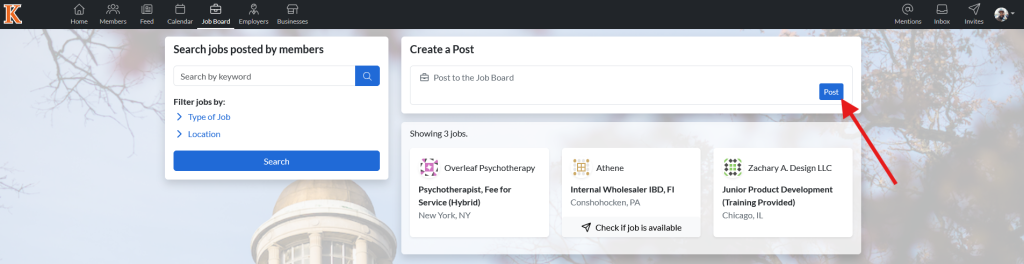
This is the job board page. From here, you can view all posted internships and jobs. To create a new internship or job posting, click on the ‘post’ button or within the ‘post to job board’ text box to open up the create a post page.
Step 3: Create a post
There are three different options available for users to create a new internship or job post.
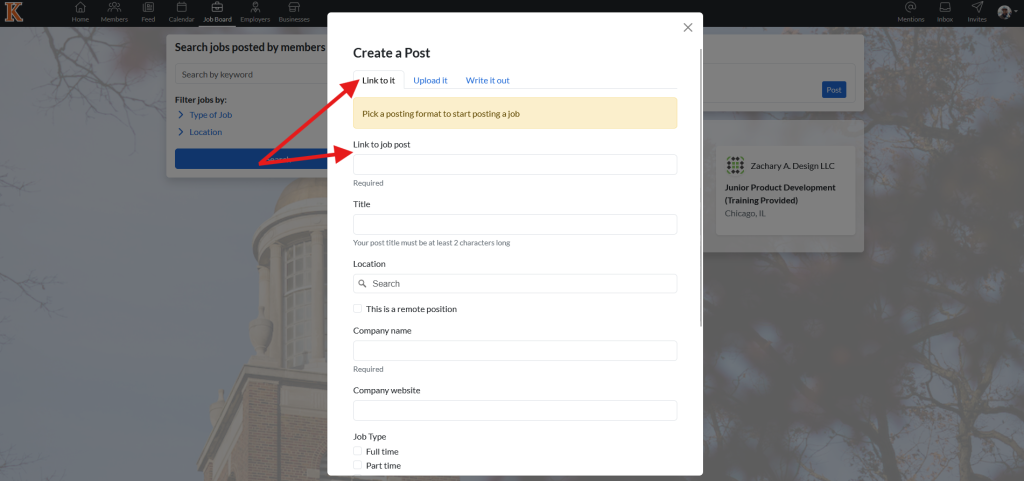
Option 1- Linking to an existing job post. This is best used when you know of an open position, and you want to get it in front of K students as soon as possible. To use this method, click on ‘Link to it’ at the top of the page and then copy and paste a link to the job post in the ‘Link to job post’ box.
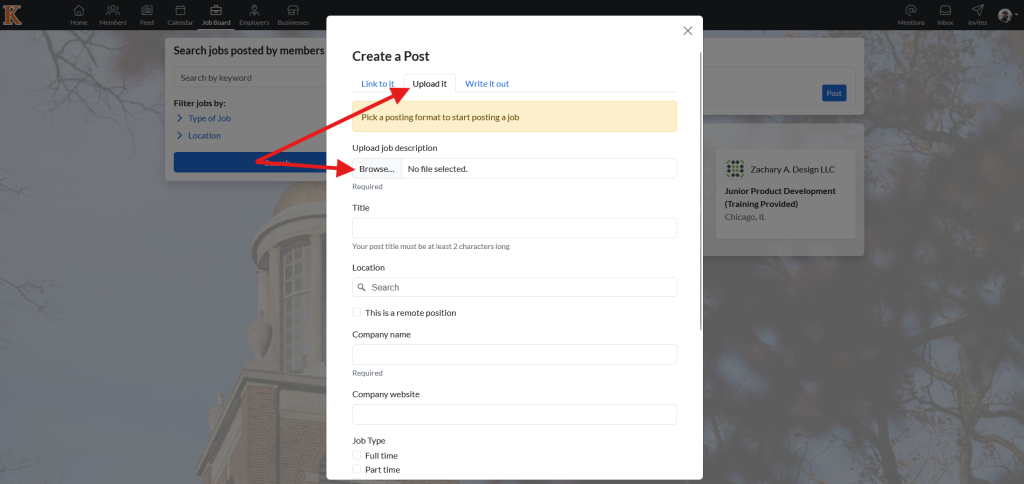
Option 2 – Upload a job/internship description from a Microsoft Word document. This is best used if you are directly involved in the recruitment and have direct access to the job/internship posting. First, click ‘Upload it’, then select ‘Browse’ and choose the Microsoft Word document that contains the job/internship posting.
Option 3 – Write it out. Using this method, you will enter all information into the website directly. This is best used when the user wants to have maximum control over what goes into the posting, or if they wish to include additional information, such as their involvement in the hiring, if students can contact them directly if they have questions, if the opportunity is also available for international students, or if the organization will sponsor worker visas.
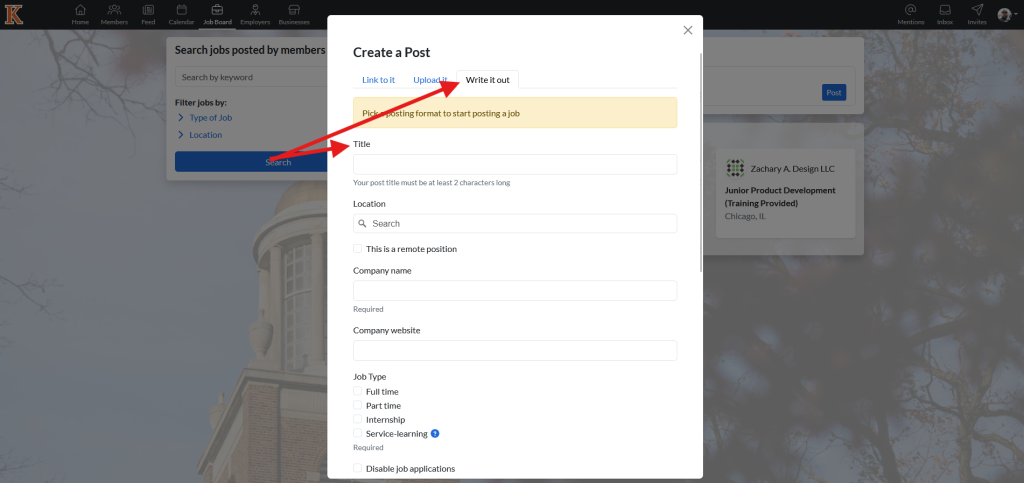
Step 4: Enter the required information
Next, enter the remaining required information, such as the position title, the company name, and the website. Be sure not to overlook key pieces of information, such as whether the opportunity is remote or in-person, and if it’s full-time, part-time, or an internship.
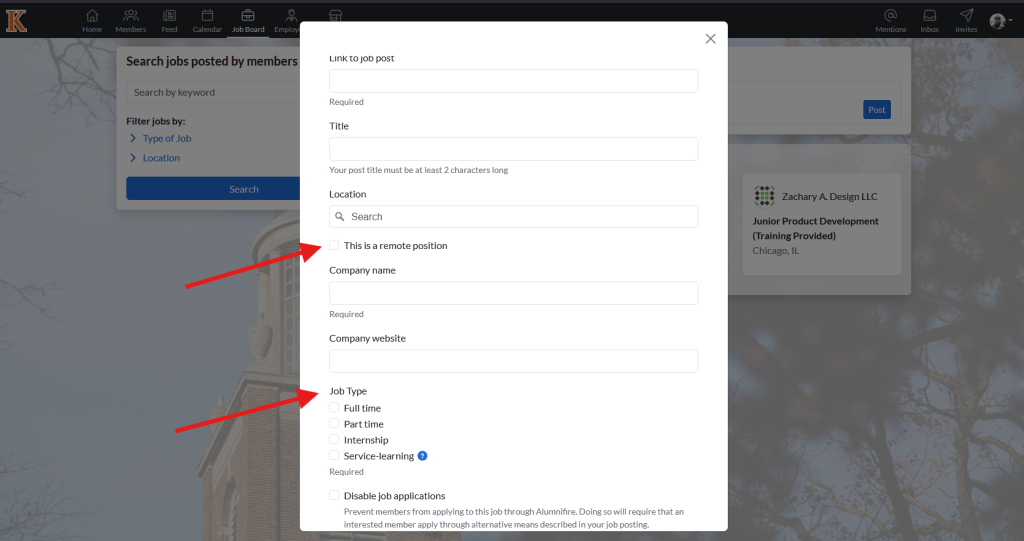
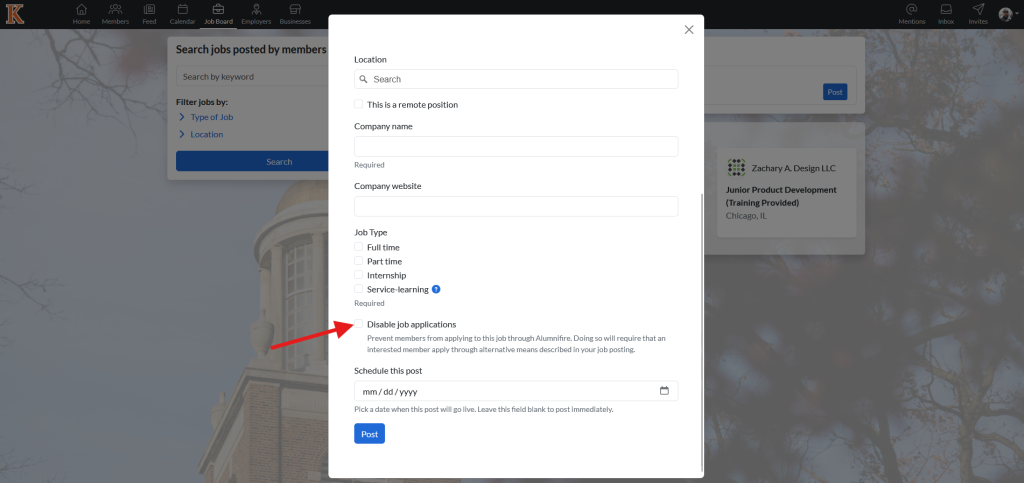
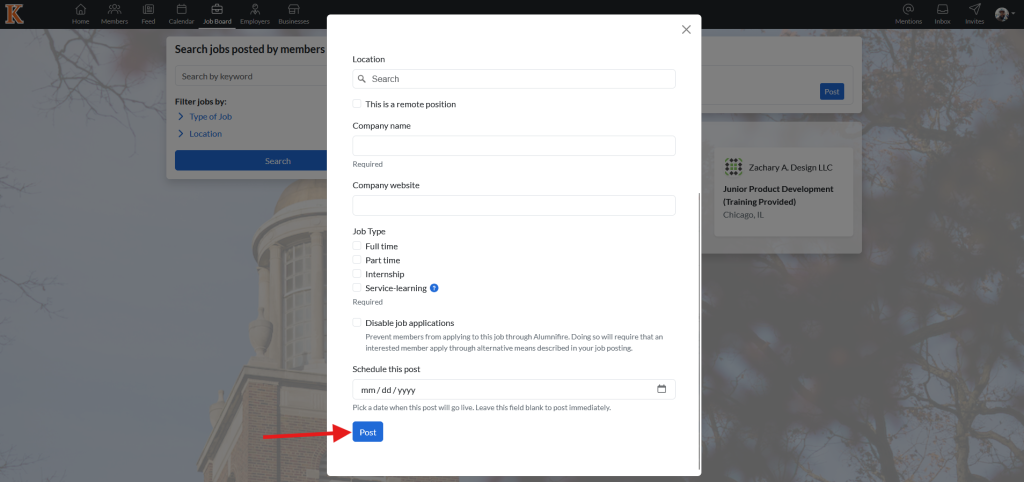
Step 5: Check the ‘Disable job applications’ box
Before you publish the job, be sure to select ‘Disable job applications’. If you do not select this option, students will upload their application documents directly to KConnect rather than to the company website. By checking this box, you ensure that students will apply through your preferred method, such as the organization’s website.
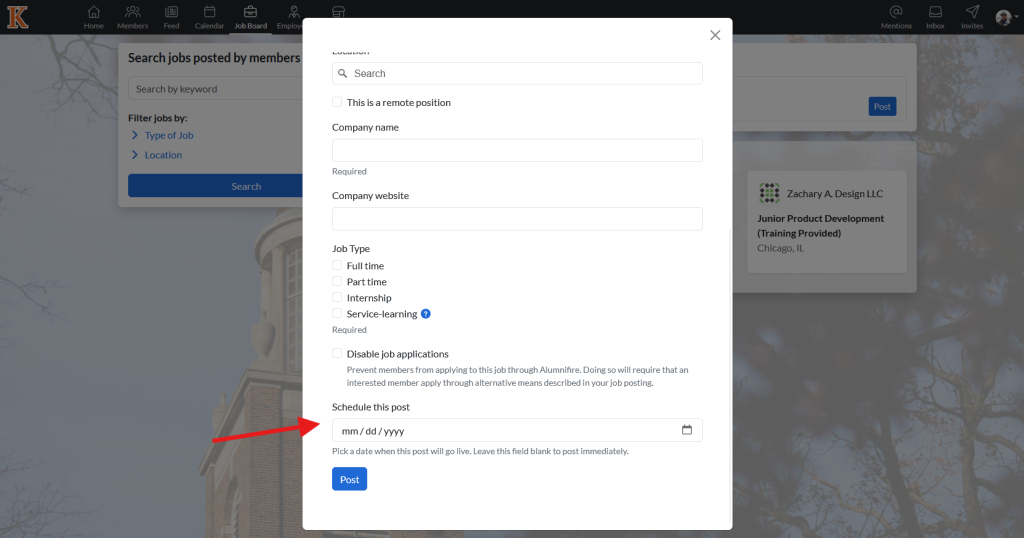
Step 6: List the date when you want the position to be published
Select the date you want to publish the post and begin accepting applicants. If you select the current date, it will be published immediately.
Step 7: Post
Once all information is entered and boxes are checked, select ‘post’ to publish the opportunity.
Additional Info
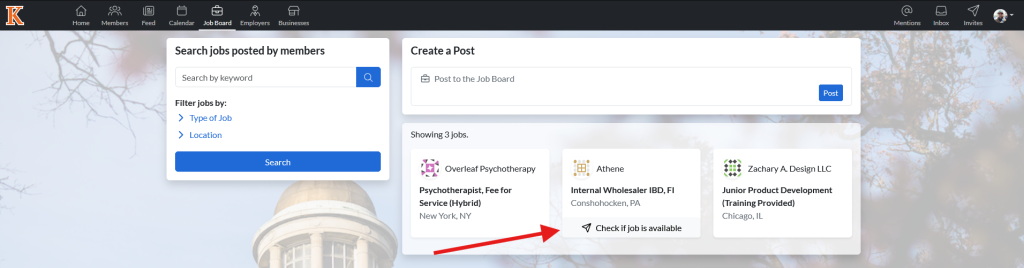
You will notice there is no option to end an “end date” for when the position will close. One of the features of KConnect’s job board is that, instead of having a specific date the position closes, after some time, a badge will be added to the position that says, ‘Check if job is available’. When that is clicked, an email will be automatically sent to the alum who posted the position, asking if the position is still open.
This feature encourages students to use those messages as a springboard for further and deeper conversations with the alum.
Closing postings
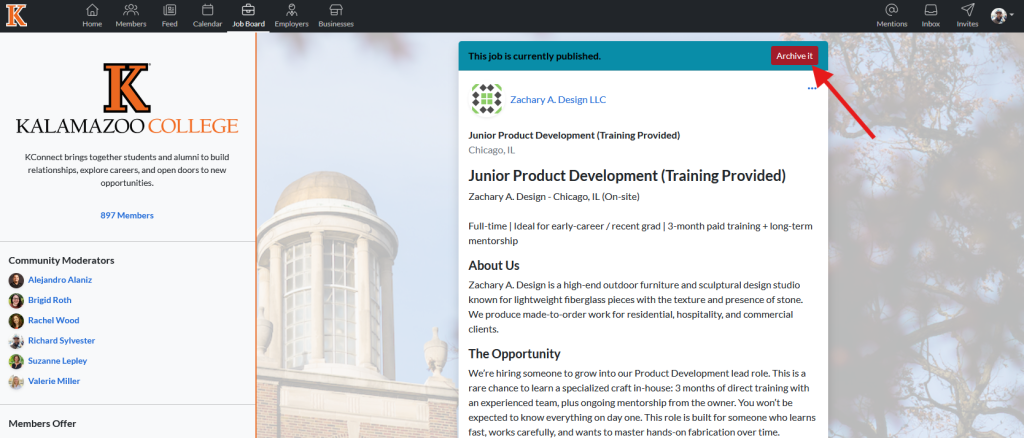
Users can close a position they posted at any time by selecting it from the various positions on the job board and then selecting ‘archive it’.
Have further questions or need additional support?
Please contact us at career@kzoo.edu or 269.337.7183.